
Save AI images and videos to Notion
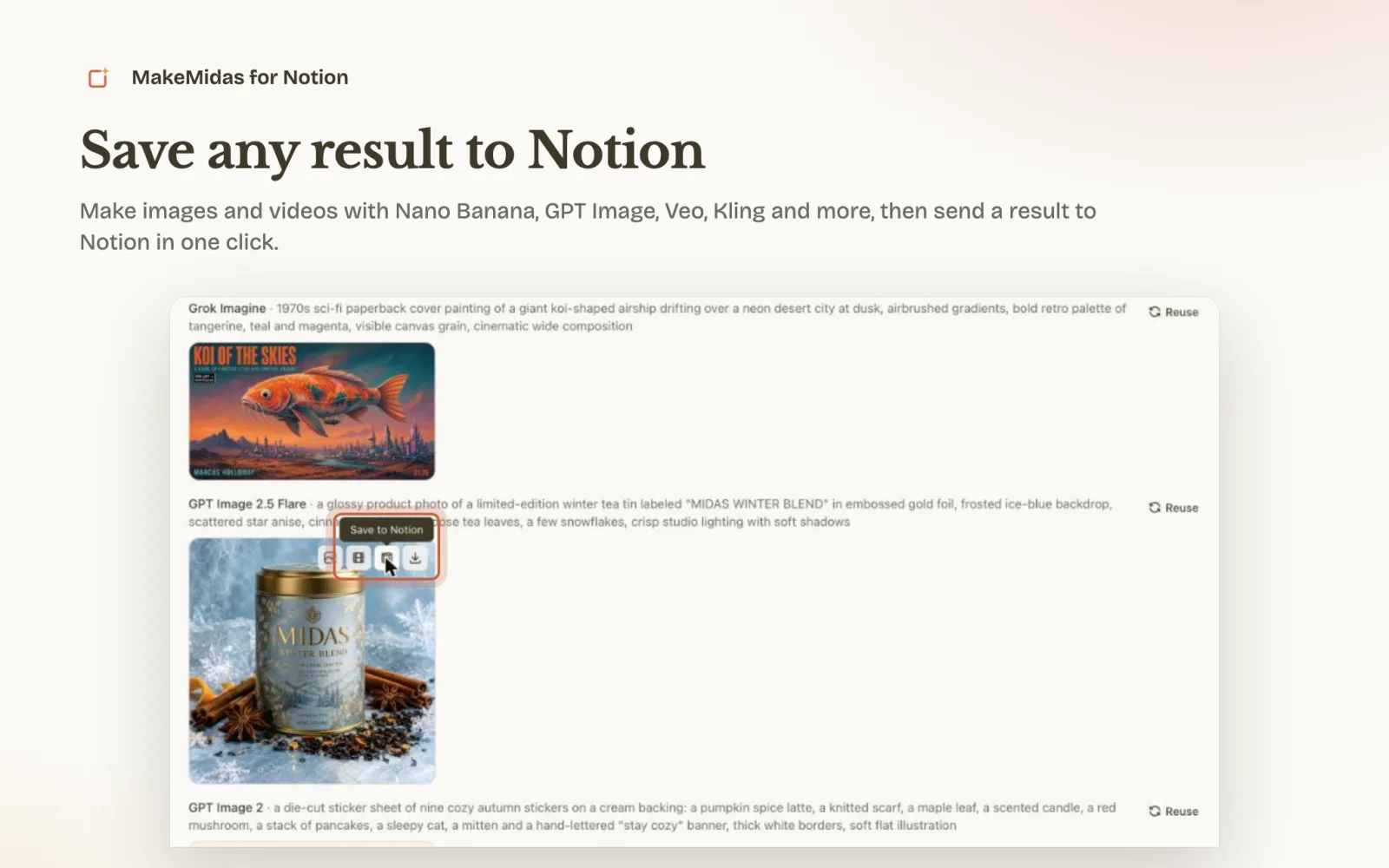
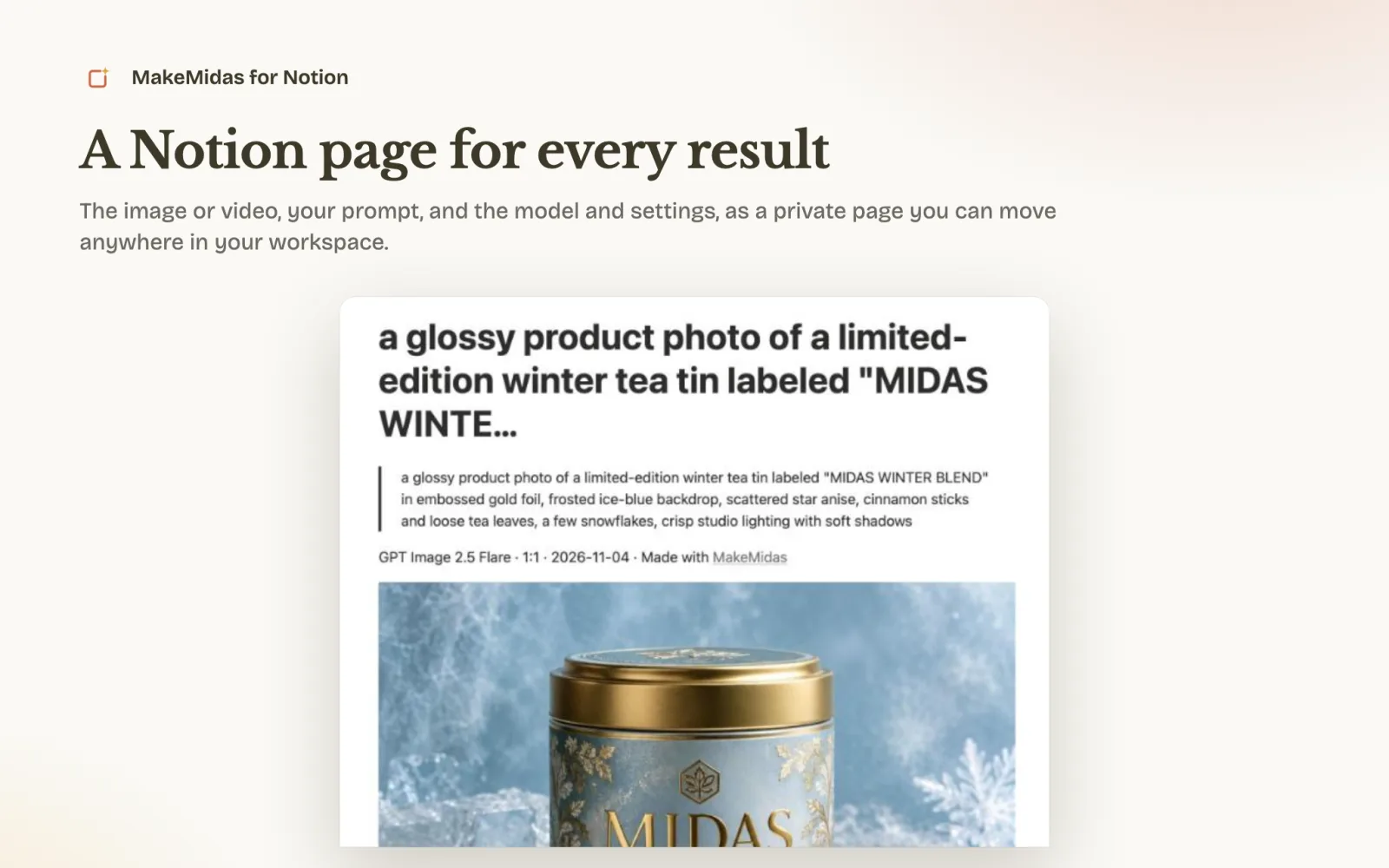
Make images and videos in MakeMidas, then send a result to Notion in one click. Each one becomes a private page with the file, your prompt and the settings, ready for mood boards, product shots and storyboards.
How to connect
- 1
Connect Notion
Sign in to MakeMidas, go to Settings → Connections and select Connect Notion, then choose the workspace for your results. Notion asks you to pick a page; MakeMidas doesn't read it. - 2
Make an image or a video
Open the generator, describe what you want or start from a picture, and pick a model. - 3
Save to Notion
On the result, select Save to Notion. The new page appears in your workspace under Private.
Using MakeMidas in ChatGPT or Claude? Ask it to save a result to Notion, for example “Save my latest MakeMidas image to Notion.”
What you get in Notion
The image or video itself
The file is uploaded to Notion, so it stays on the page and plays or opens there.
Your prompt
The full prompt sits on the page, so you can reuse or tweak it later.
Model, settings and a link back
The model, aspect ratio, resolution and date, with a link back to MakeMidas.
A page you can move
Move it into any teamspace, database or project afterwards, like any other Notion page.
What the app can access
MakeMidas only creates new pages for the results you save. It doesn't read, change or delete your existing pages.
Questions
Where does the page go?
Each result becomes its own private page in the workspace you connected, under Private. Move it into a teamspace, database or project like any other Notion page.
Can MakeMidas see my other Notion pages?
No. It only creates pages for the results you save. Notion asks you to pick a page when you connect, but MakeMidas doesn't read it.
Is there a file size limit?
Notion's free plan accepts files up to 5 MB, so large images and longer videos may need a paid Notion plan. If a file is too large, download it from MakeMidas instead.
Is it free?
Connecting Notion and saving results is free. Making images and videos spends MakeMidas credits; every signed-in account gets 10 free credits a day for the free image models.
How do I disconnect Notion?
Disconnect it in MakeMidas under Settings → Connections, or remove MakeMidas in Notion under Settings → Connections. Pages you already saved stay in Notion.
Use MakeMidas in other apps
No MakeMidas account yet?
Create a free account in a minute. Every signed-in account gets 10 free credits a day for the free image models, no card needed.
Create a free account